New Solution to Fix Gameloop Hyper-V Incompatibility (100% Working)
Fix the “Incompatible Hyper-V” error in GameLoop on Windows 11 using this tested 2025 guide.
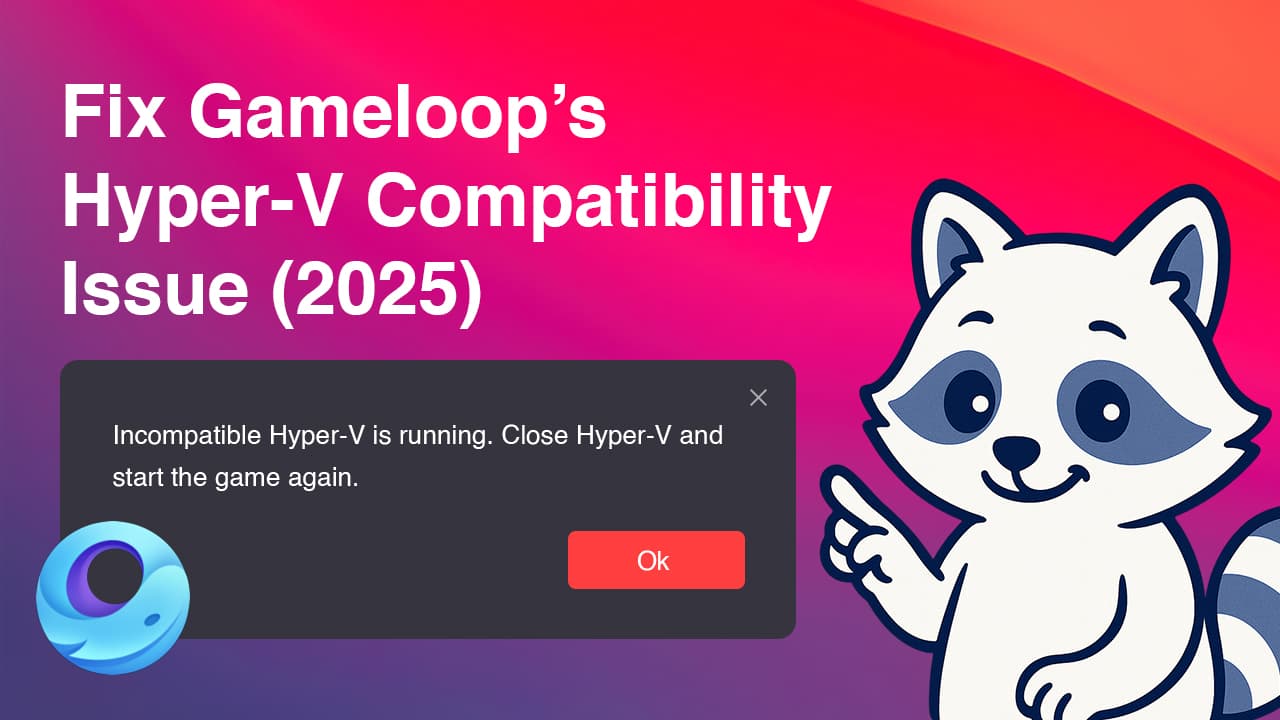
⚠️ The Problem
When you try to open GameLoop, you may see this frustrating error:
Incompatible Hyper-V is running

This happens when Windows detects certain virtualization features like Hyper-V or Windows Hypervisor Platform, which prevent GameLoop from accessing your computer’s hardware.
The issue is especially common in Windows 11 25H2, where Hyper-V becomes more tightly integrated into the system, breaking compatibility with emulators such as GameLoop, LDPlayer, and BlueStacks.
🧠 Before You Begin — Check Your Windows Version
Before trying any fix, first check which version of Windows 11 you are using.
▶️ How to Check:
- Press Win + R
- Type:
winver
- Press Enter

You’ll see a small window showing your Windows version (for example: Version 22H2 or 25H2).
🩻 Solution 1 — (For All Versions Except 25H2)
If your version is not 25H2, try this first.
This fix works perfectly on most versions like Windows 11 24H2 and older builds.
✅ Solution: Turn OFF the Two Problematic Features
- Press Win + S and search for:
Turn Windows features on or off

- Make sure Hyper-V is enabled.

- Uncheck these two options only:
- Virtual Machine Platform ❌
- Windows Hypervisor Platform ❌

- Click OK, then Restart your computer.
Now open GameLoop again — in most Windows versions, the emulator should start normally with no “Incompatible Hyper-V” error.
💡 Tip: Even if the boxes are already unchecked, toggle them once to make sure Windows completely deactivates them.
⚠️ Solution 2 — For Windows 11 25H2 (Or If Solution 1 Doesn’t Work)
If your system is running Windows 11 25H2, the above fix will not work.
This version has deeper Hyper-V integration that cannot be fully disabled from “Windows Features”.
After many tests, I confirmed that the only reliable solution is to downgrade to Windows 11 Pro 22H2, where GameLoop works perfectly.
💾 Step 2 — Downgrade to Windows 11 Pro 22H2
🧭 Follow these steps:
- Backup your data (documents, photos, etc.).
- Download Windows 11 Pro 22H2 ISO from this trusted source:
👉 Windows 11 Pro 22H2 (Archive.org) - Use Rufus to create a bootable USB.
- Boot from the USB and reinstall Windows (clean installation recommended).
- After installation, do not enable any virtualization or Hyper-V features manually.
Once installed, GameLoop will work instantly — without any “Incompatible Hyper-V” message or crashes.
🧩 Why This Fix Works
Based on my research and tests across multiple setups:
| Setting | Status |
|---|---|
| Hyper-V (BIOS) | ✅ ON |
| Hyper-V Platform | ✅ ON |
| Hyper-V Management Tools | ✅ ON |
| Virtual Machine Platform | ❌ OFF |
| Windows Hypervisor Platform | ❌ OFF |
This configuration works perfectly on Windows 11 24H2 or older builds, but fails on 25H2.
That’s why downgrading is currently the only 100% stable solution for GameLoop in 2025.
🧰 Verify Hyper-V Status (Optional)
To check if Hyper-V is active on your system:
- Open PowerShell as Administrator
- Type:
systeminfo | find "Hyper-V"